Mac安装openclaw步骤

最近爆火的龙虾它就像个随时待命的实习生,热情、能干、随叫随到——但也可能把你重要的文件‘整理’进回收站,还一脸无辜地问你‘还要吗’。赶紧安装体验下。

Mac安装openclaw步骤

一、前期准备

  • **Node 24(推荐)**(出于兼容性考虑,仍支持 Node 22 LTS,目前为 22.16+

如果node版本较低,可参考该链接升级:升级node.js

二、安装openclaw

1.一键安装 OpenClaw(官方脚本)

1
2
# 一键安装 OpenClaw(官方脚本)
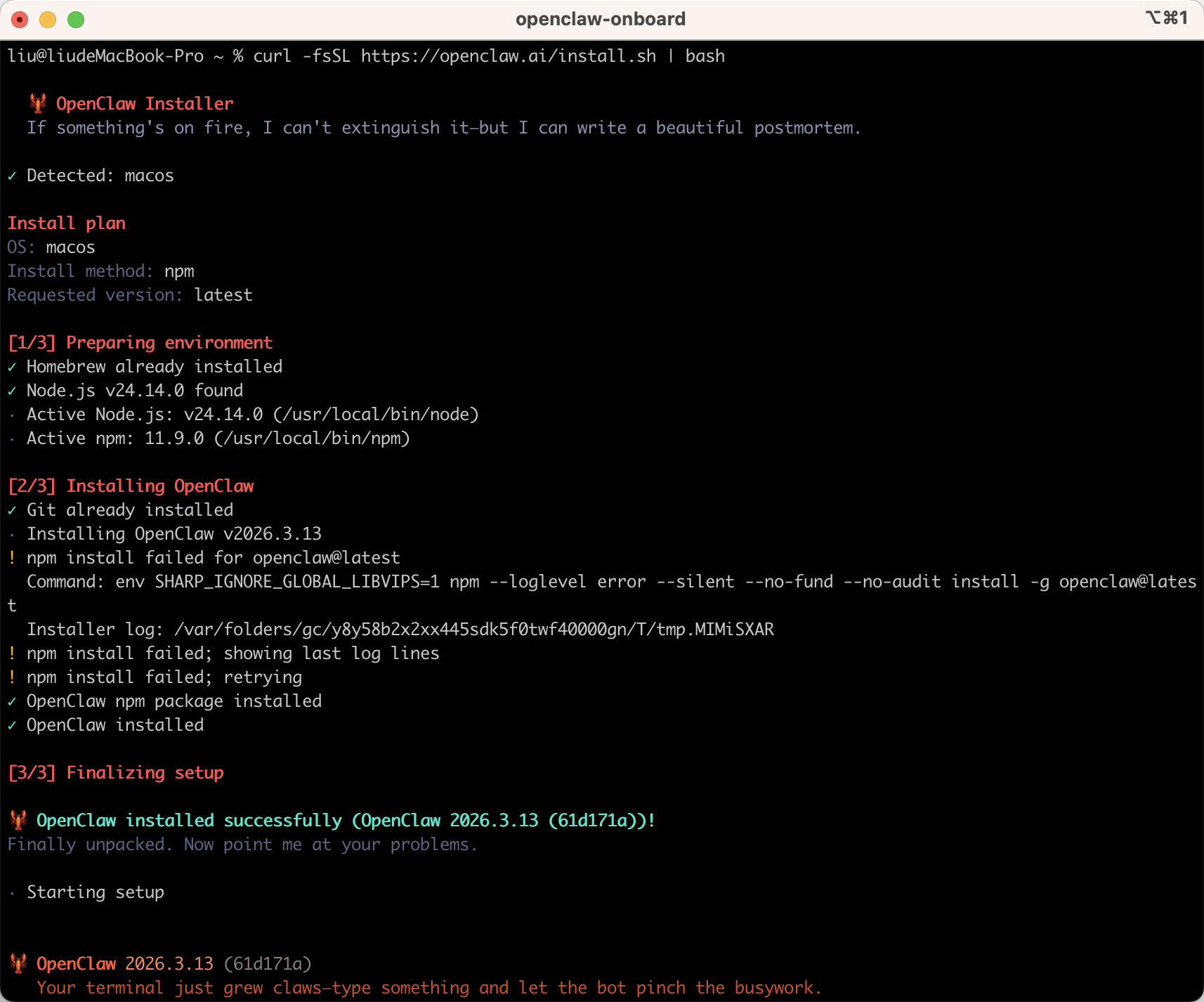
curl -fsSL https://openclaw.ai/install.sh | bash

openclaw-1
安装中
openclaw-2

出现该内容表示安装成功,继续配置openclaw。

整体配置的对话有这些:

1
2
3
4
5
6
7
8
9
10
11
12
13
14
15
16
17
18
19
20
21
22
23
24
25
26
27
28
29
30
31
32
33
34
I understand this is personal-by-default and shared/multi-user use requires lock-down. Continue?
y
Onboarding mode
│ ● QuickStart (Configure details later via openclaw configure.)
Config handling
│ ● Use existing values

Model/auth provider(按方向键上)
│ ● Skip for now
Filter models by provider
│ ● All providers

Default model
│ ● Keep current (default: anthropic/claude-opus-4-6)

Select channel (QuickStart)
│ ● Skip for now (You can add channels later via `openclaw channels add`)

Search provider
│ ● Skip for now (Configure later with openclaw configure --section web)

Configure skills now? (recommended)
│ ○ Yes / ● No

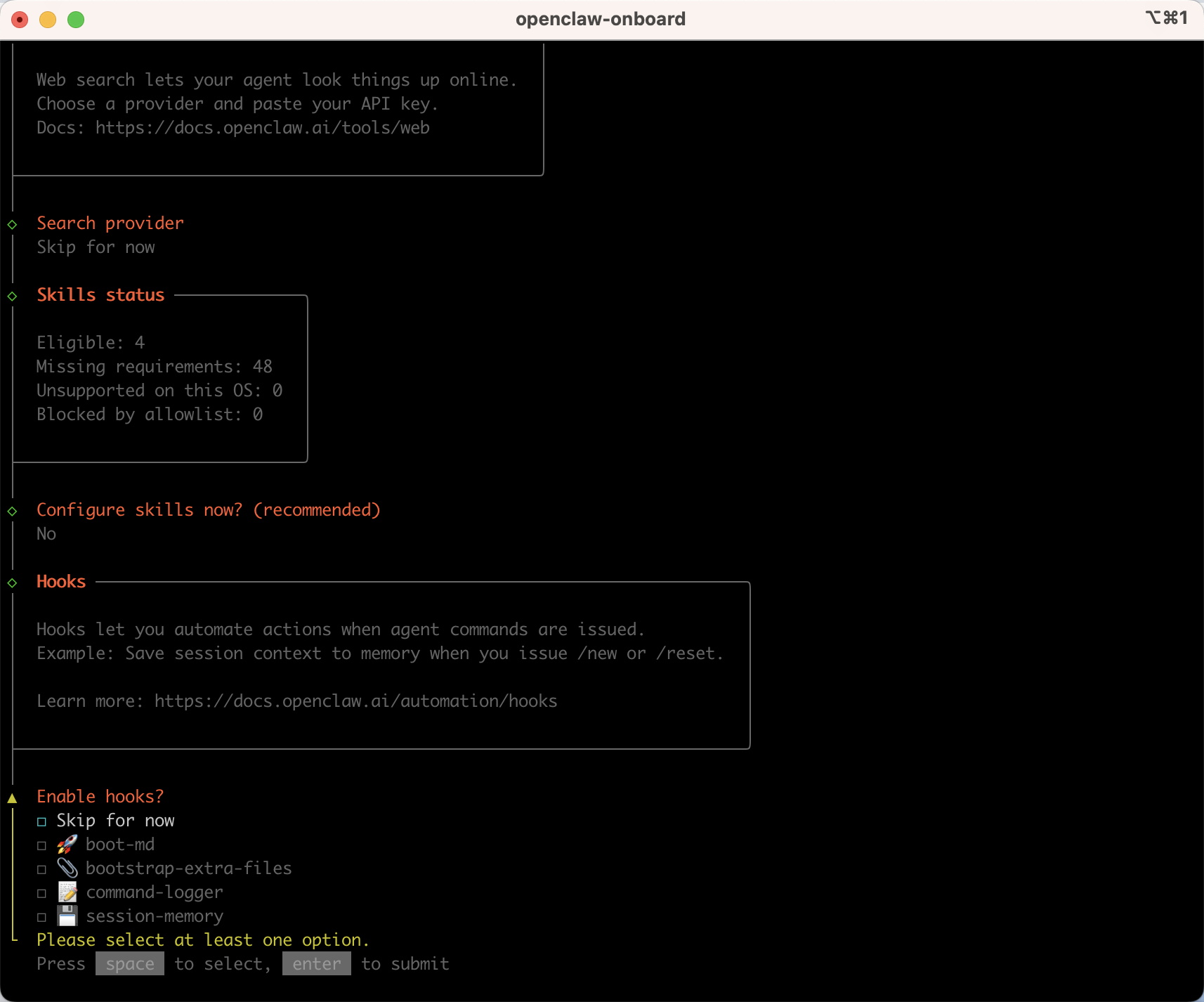
Enable hooks?(空格选中 回车确认)
│ ◻ Skip for now
│ ◼ 🚀 boot-md (Run BOOT.md on gateway startup)
│ ◼ 📎 bootstrap-extra-files (Inject additional workspace bootstrap files via glob/path patterns)
│ ◼ 📝 command-logger (Log all command events to a centralized audit file)
│ ◼ 💾 session-memory (Save session context to memory when /new or /reset command is issued)
Gateway service already installed
│ ● Restart
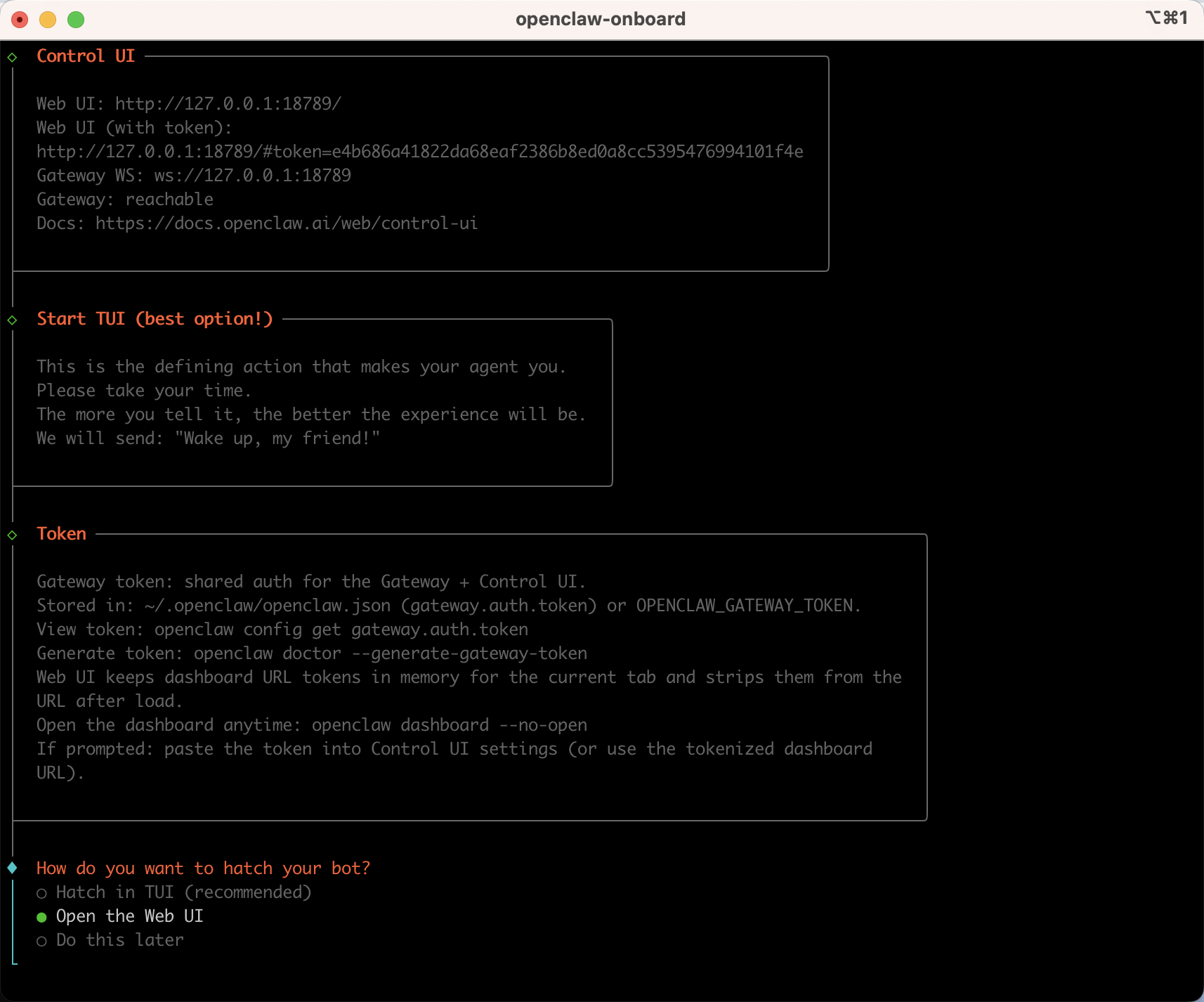
How do you want to hatch your bot?
│ ● Open the Web UI

也可以看下面的详细操作步骤。

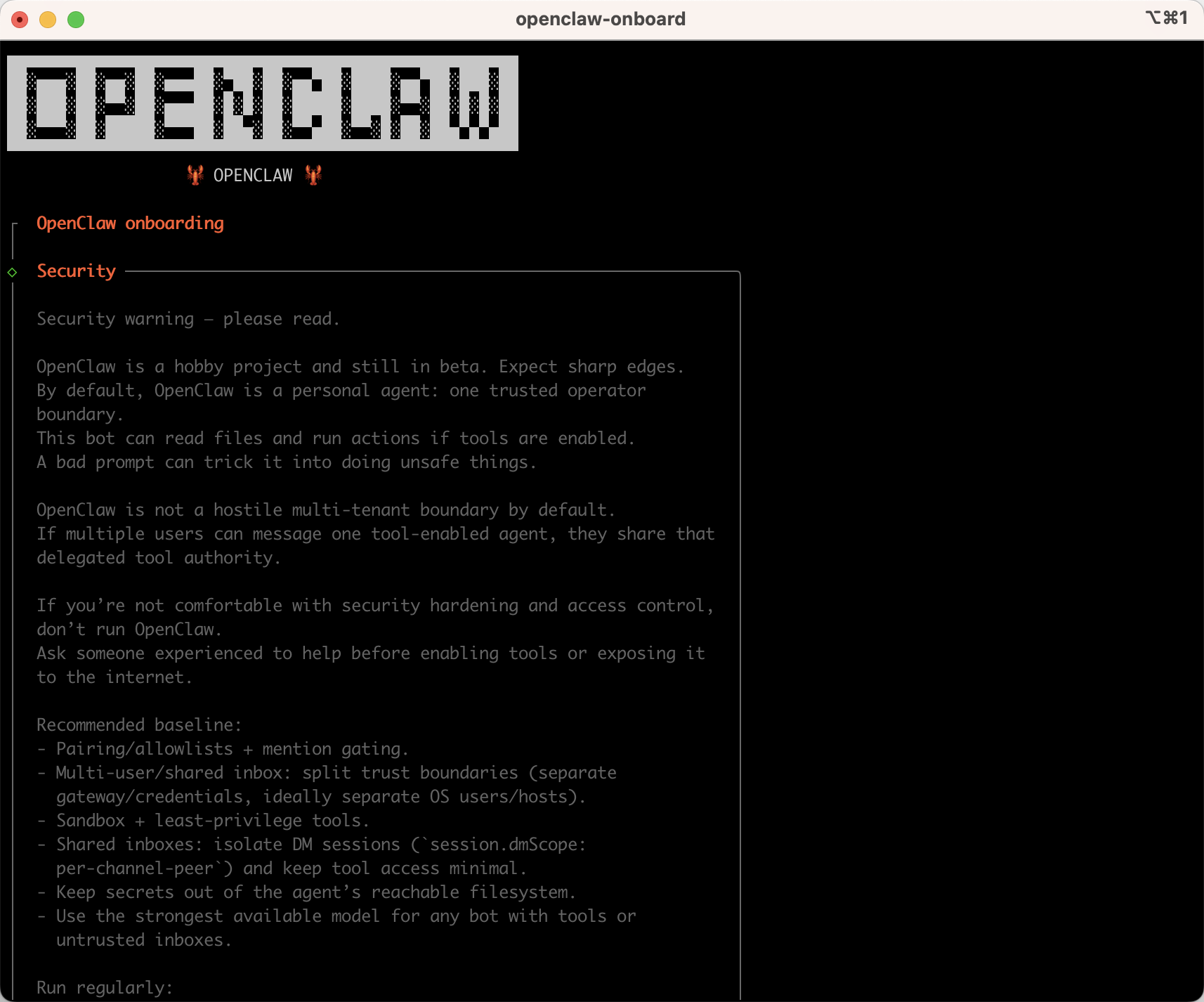
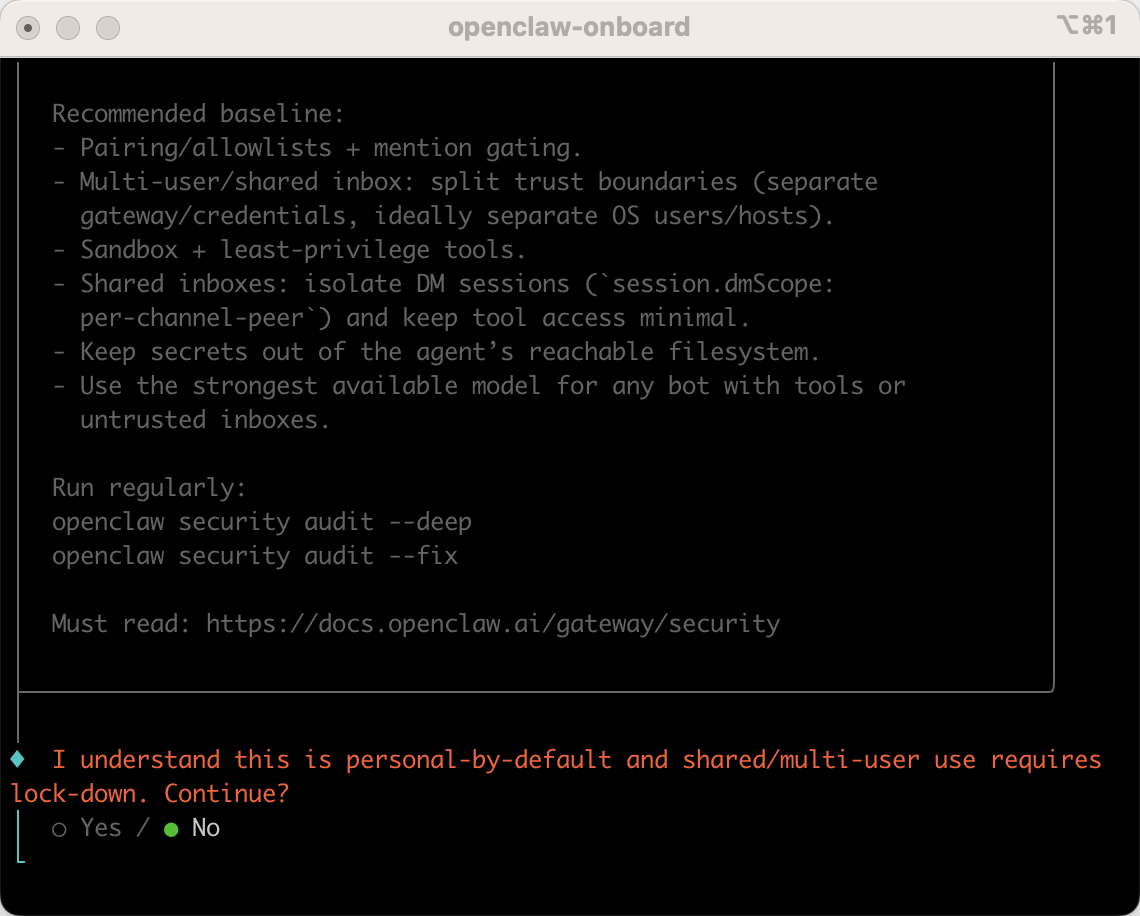
2.接受风险提示

openclaw-3

1
2
3
4
5
#我知道这是默认的个人使用,共享/多用户使用需要锁定。继续吗?
I understand this is personal-by-default and shared/multi-user use requires
lock-down. Continue?
│ ● Yes / ○ No
按左右方向键切换,选yes 接受风险提示。

3.选择启动模式

推荐选择QuickStart快速启动模式

1
2
  Onboarding mode
│ QuickStart

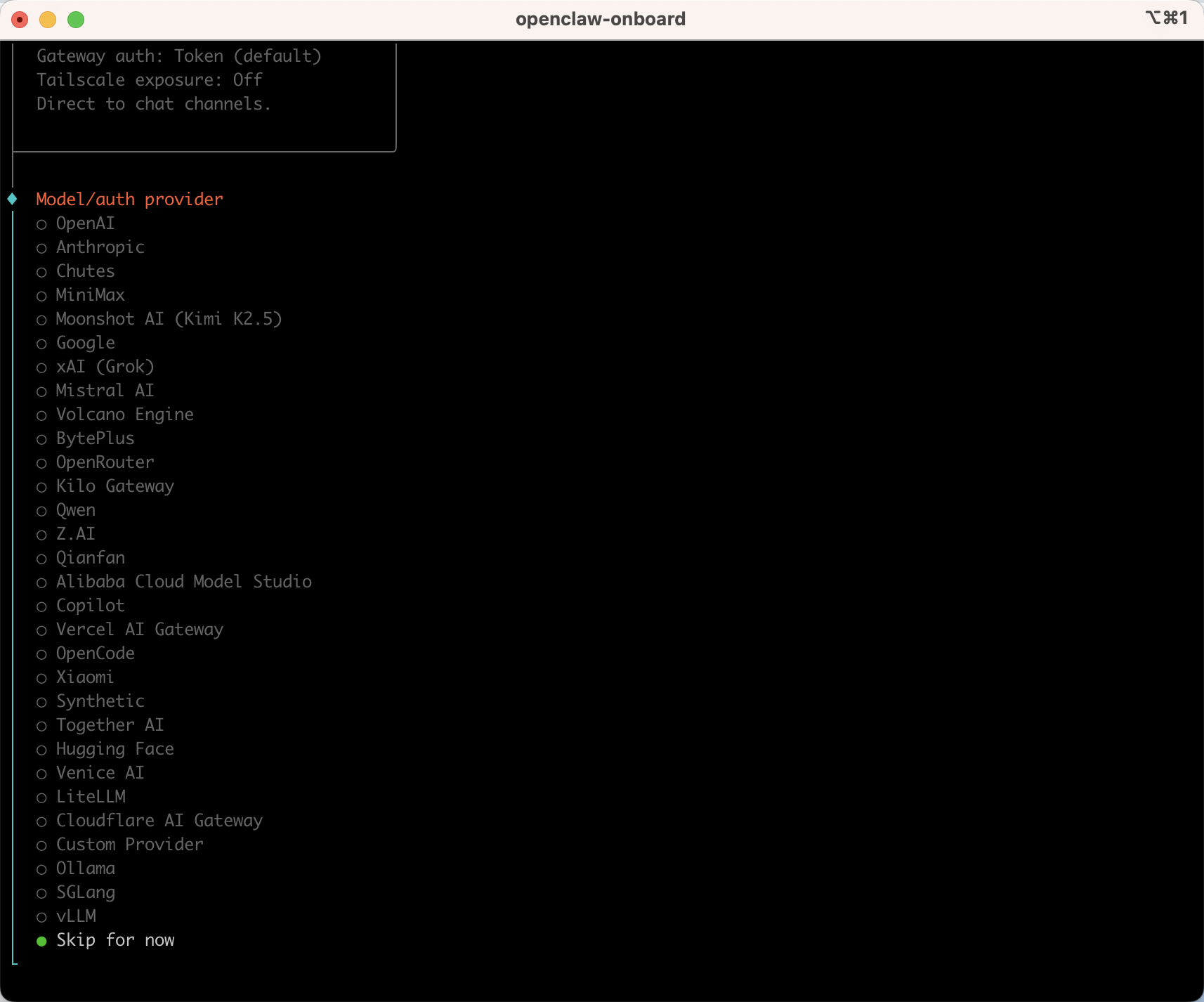
4.选择AI模型

这里选择最后一个Skip for now跳过,后面在去配置。

也可以选择你已经有的模型,配置apikey即可。

openclaw-4

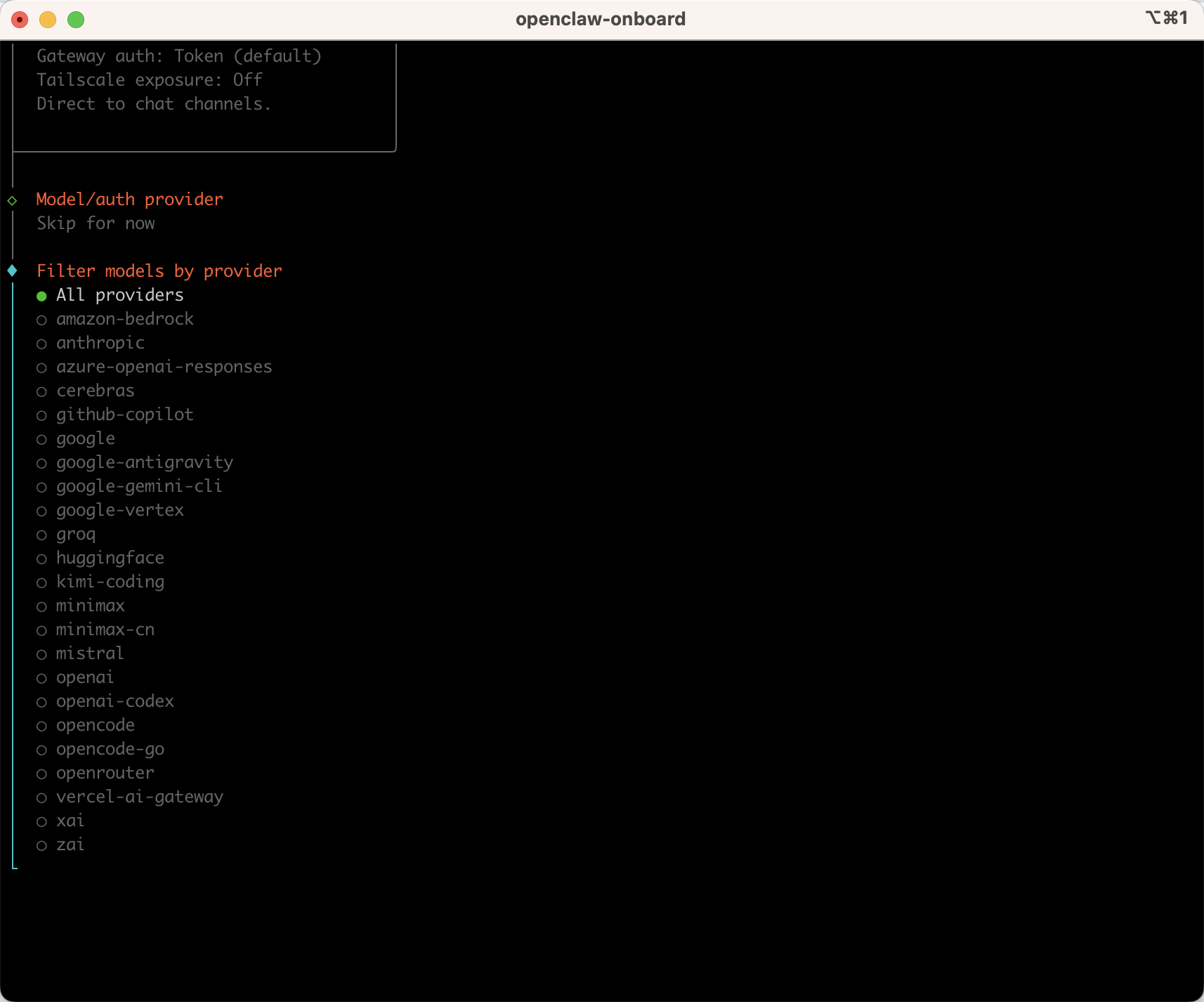
5.模型供应商

选择所有供应商:
openclaw-5

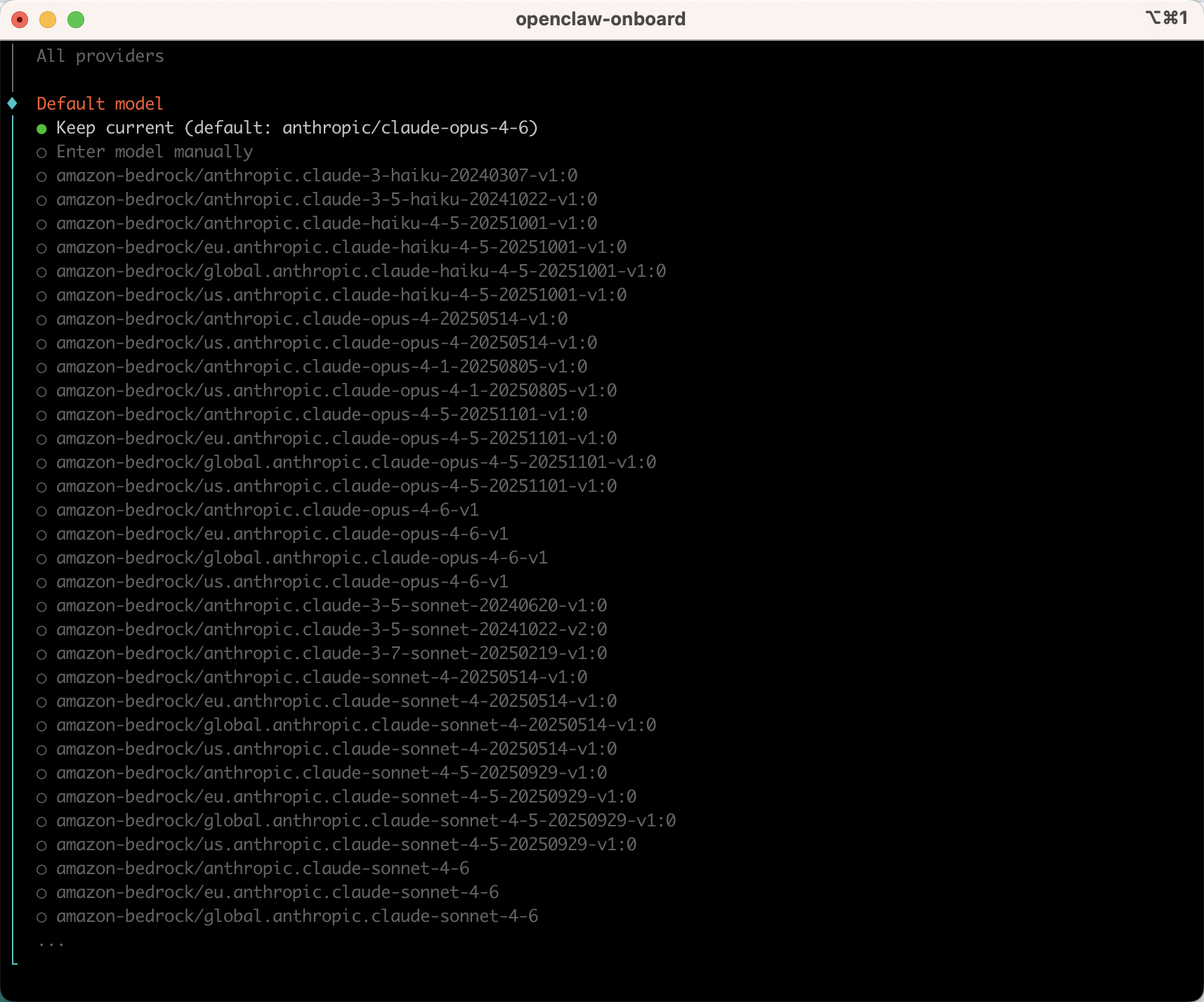
6.设置默认model

选择默认即可,后面还会配置模型:
openclaw-6

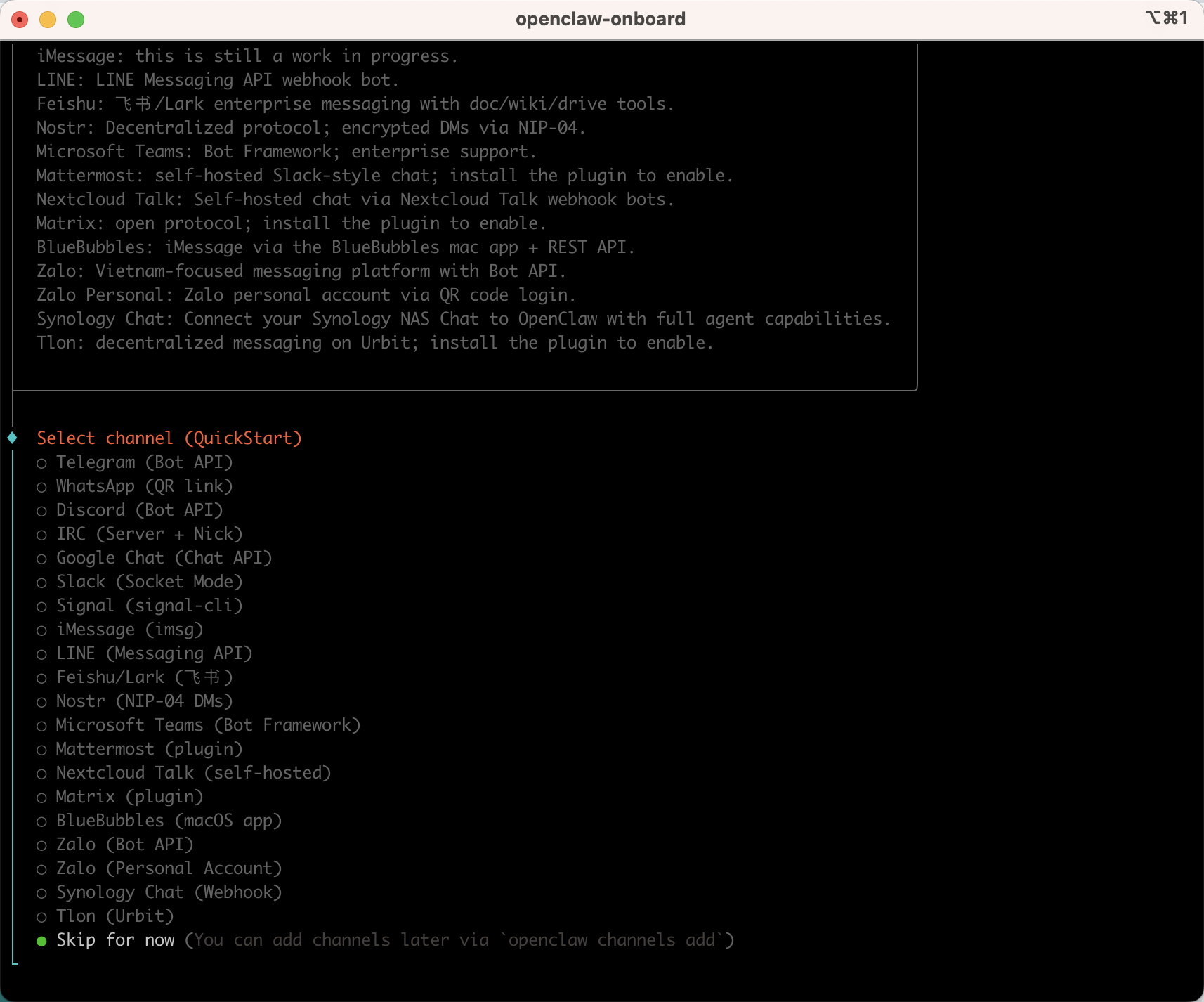
7.选择聊天工具

这里选择最后一个Skip for now 跳过,后面在去配置:

openclaw-7

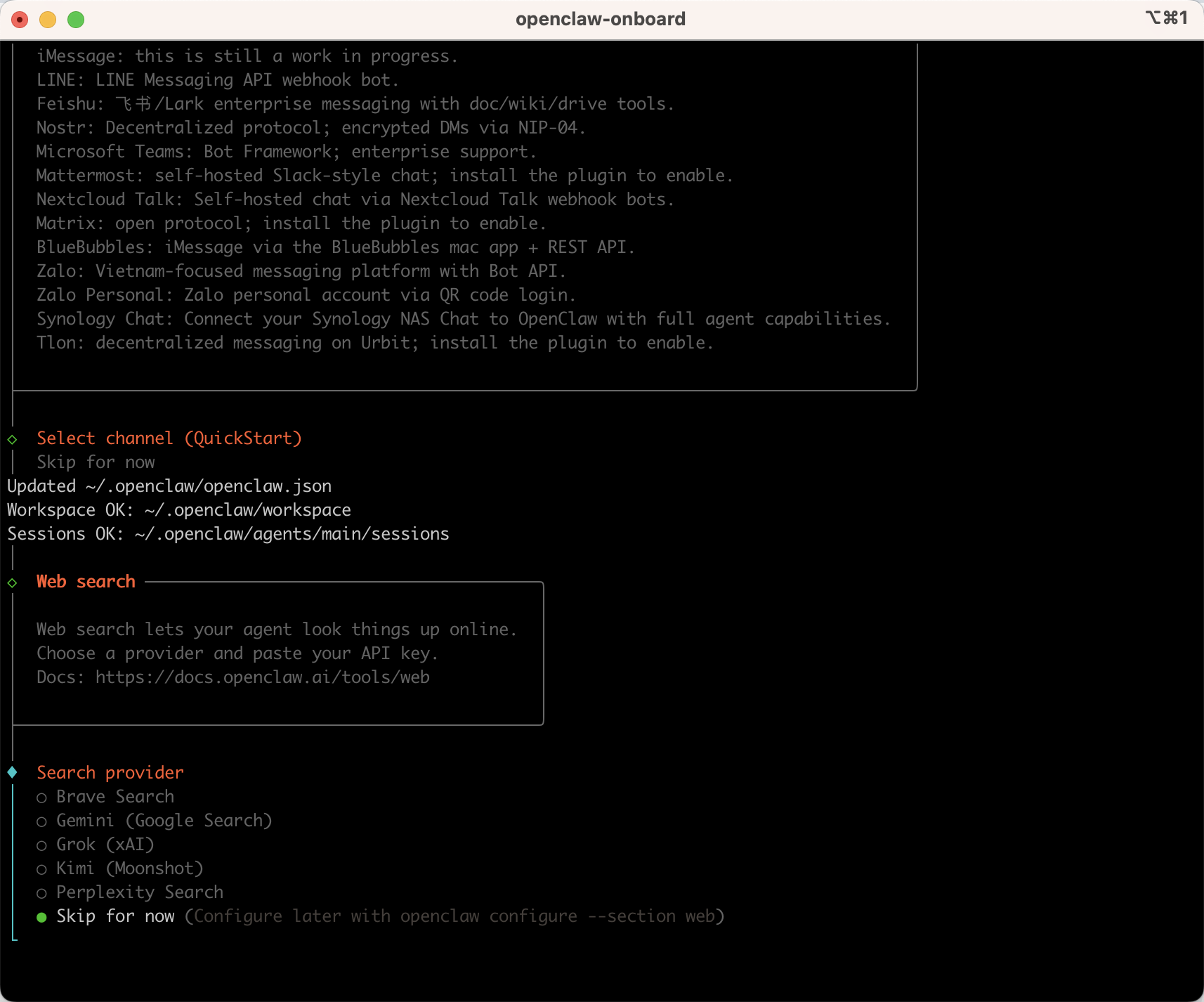
8.选择网络搜索

这里也是跳过:

openclaw-8

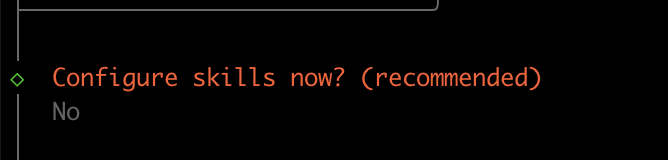
9.配置skills

这里也是跳过。
openclaw-9

10.配置hooks

上下键切换选项,按空格选择Skip for now,然后回车:

openclaw-10

11.打开web聊天框

选择Open the Web UI,打开网页对话页面:

openclaw-11
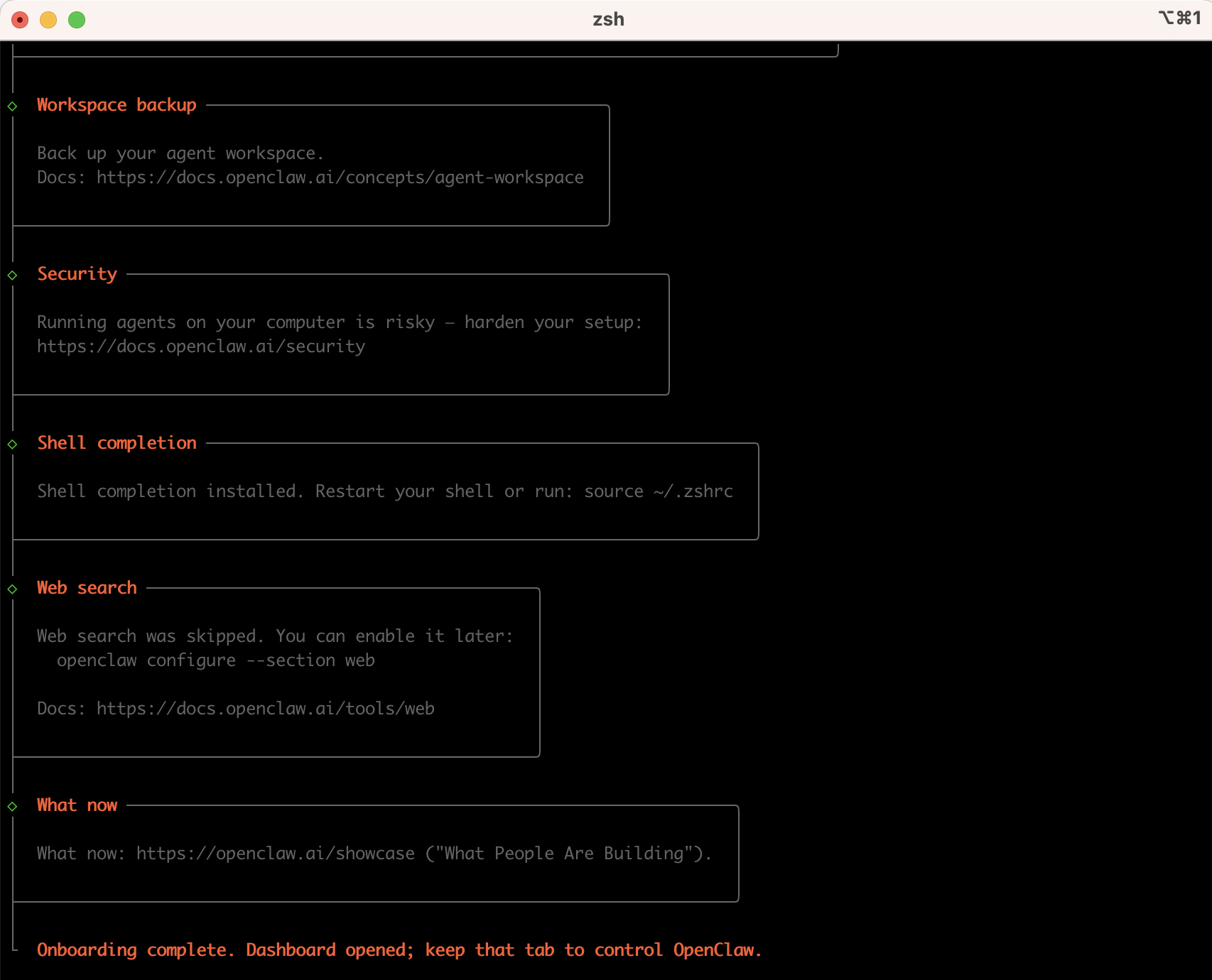
openclaw-12
openclaw-13

至此安装成功!

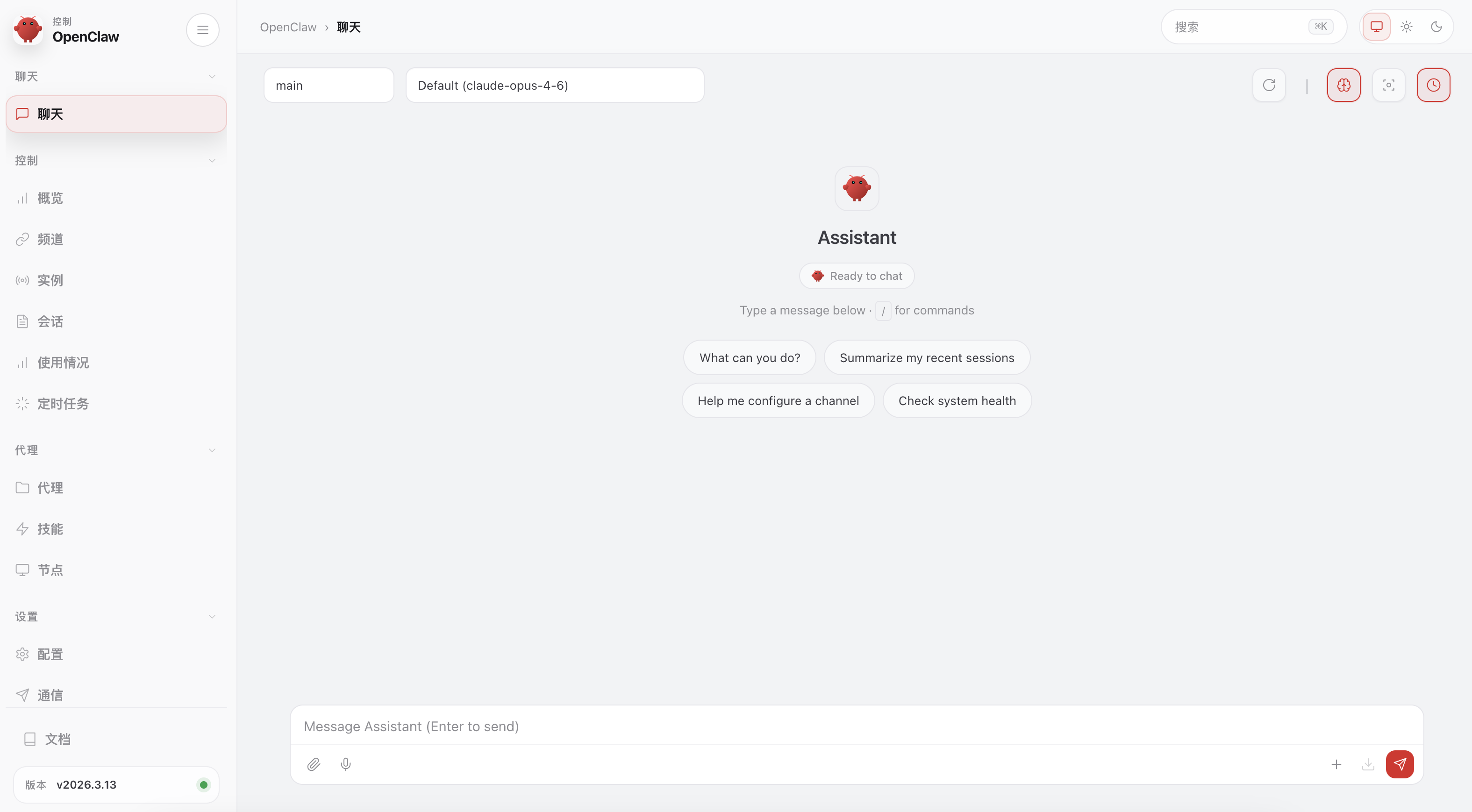
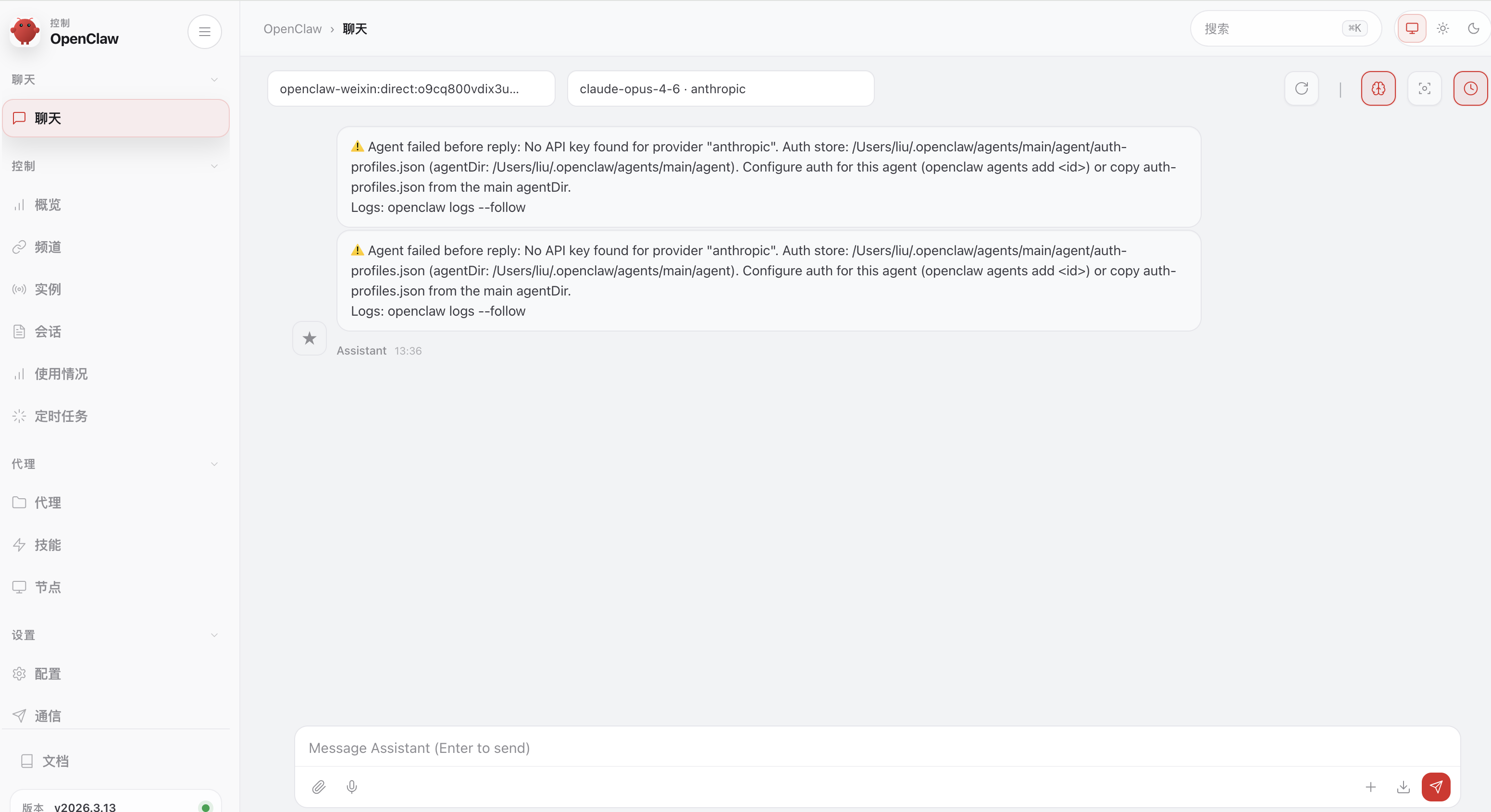
12.web访问(暂时还用不了需要配置模型)

访问地址:

1
http://127.0.0.1:18789/chat?session=agent%3Amain%3Amain

openclaw-14

13.配置AI模型

终端输入:

1
openclaw config
1
2
3
4
5
6
7
8
9
10
11
12
13
14
15
16
17
18
openclaw config
Where will the Gateway run?
│ ● Local (this machine) (Gateway reachable (ws://127.0.0.1:18789))
│ ○ Remote (info-only)
Select sections to configure
│ ○ Workspace
│ ● Model (Pick provider + credentials)
│ ○ Web tools
│ ○ Gateway
│ ○ Daemon
│ ○ Channels
│ ○ Skills
│ ○ Health check
│ ○ Continue
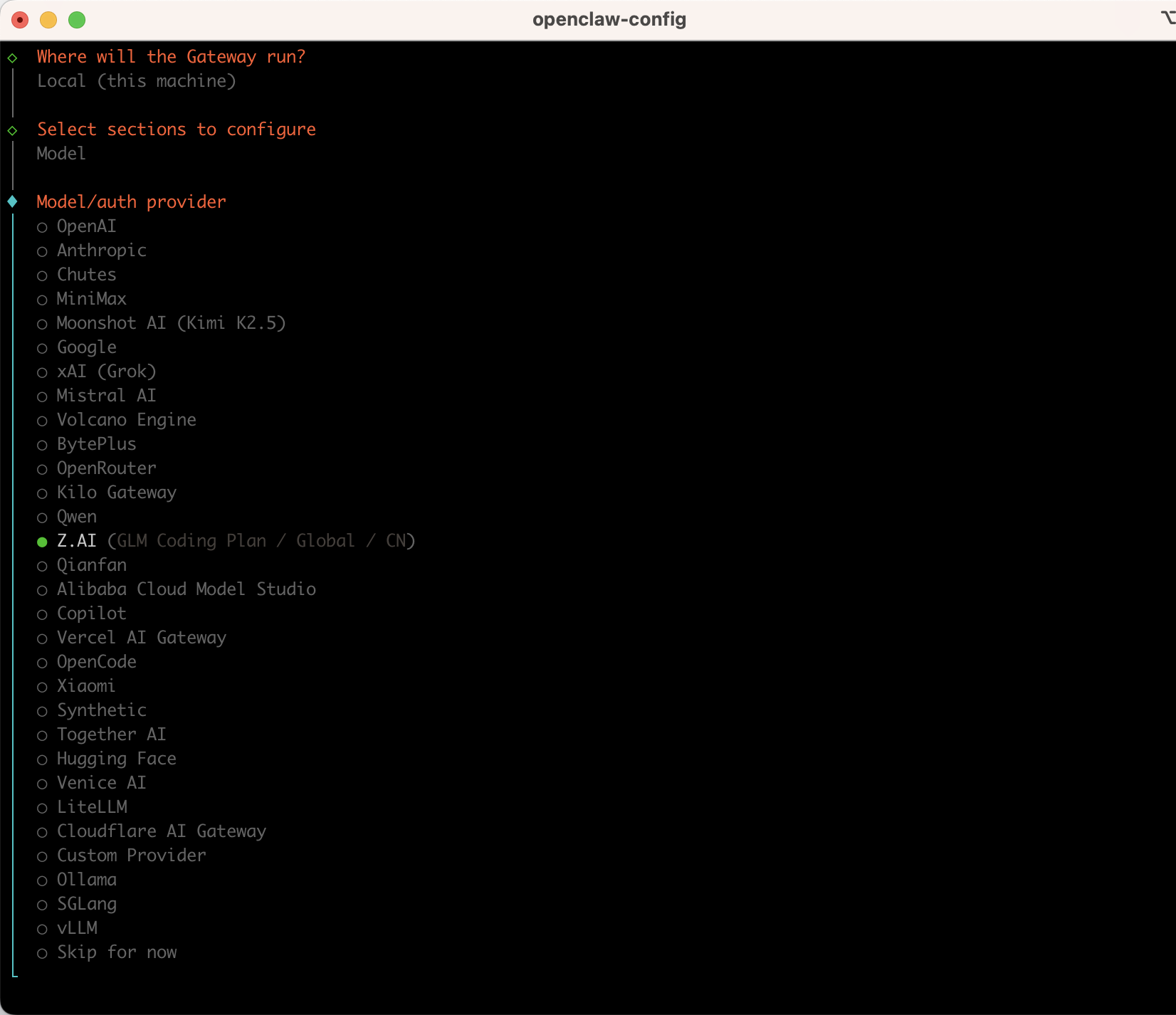
Model/auth provider

│ ● Z.AI (GLM Coding Plan)

openclaw-15

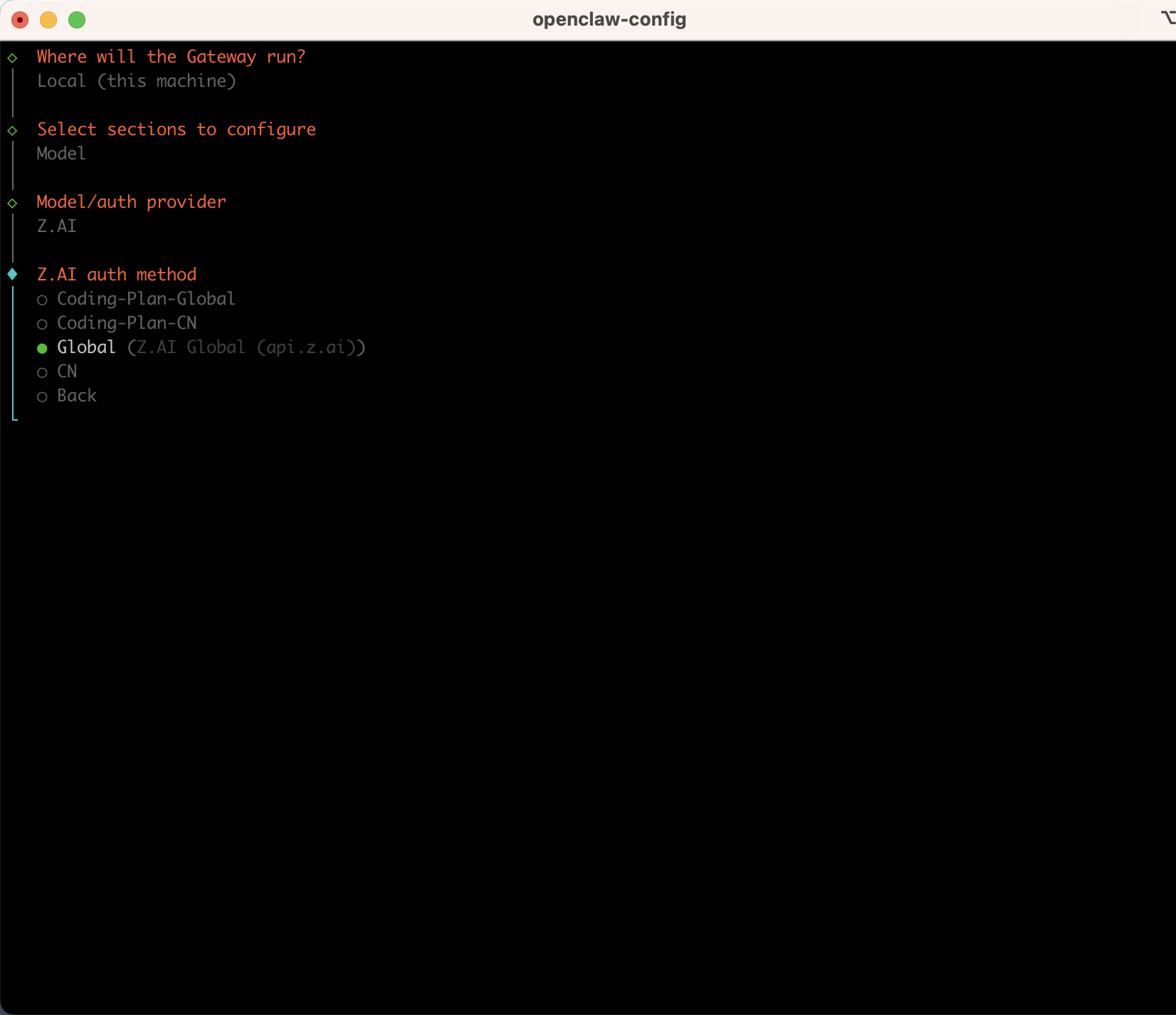
选择Z.AI,选择Global

openclaw-16

选择glm-4.7-flash,是免费的,回车确认

openclaw-17

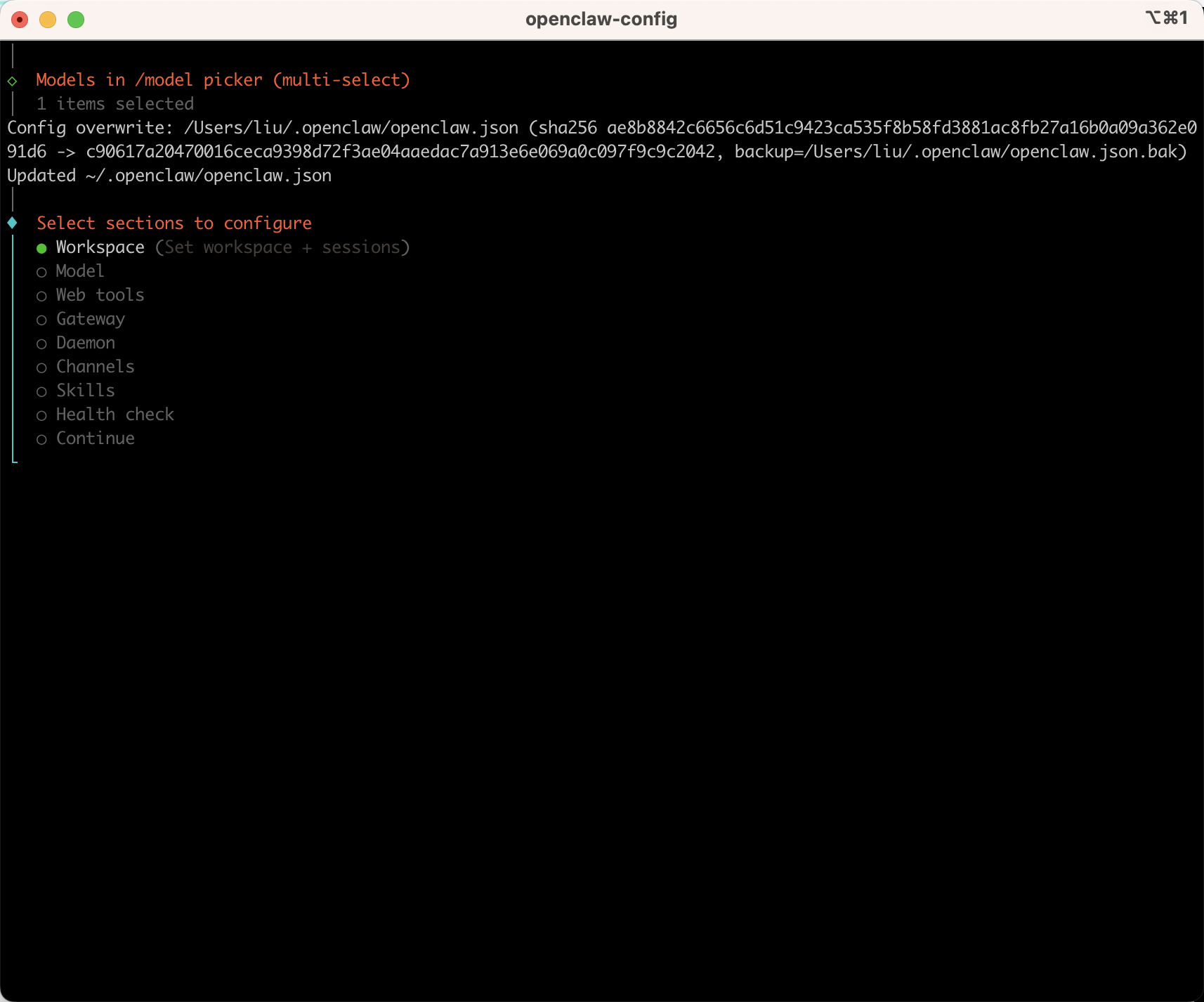
然后continue,或者按esc退出配置即可。
openclaw-18

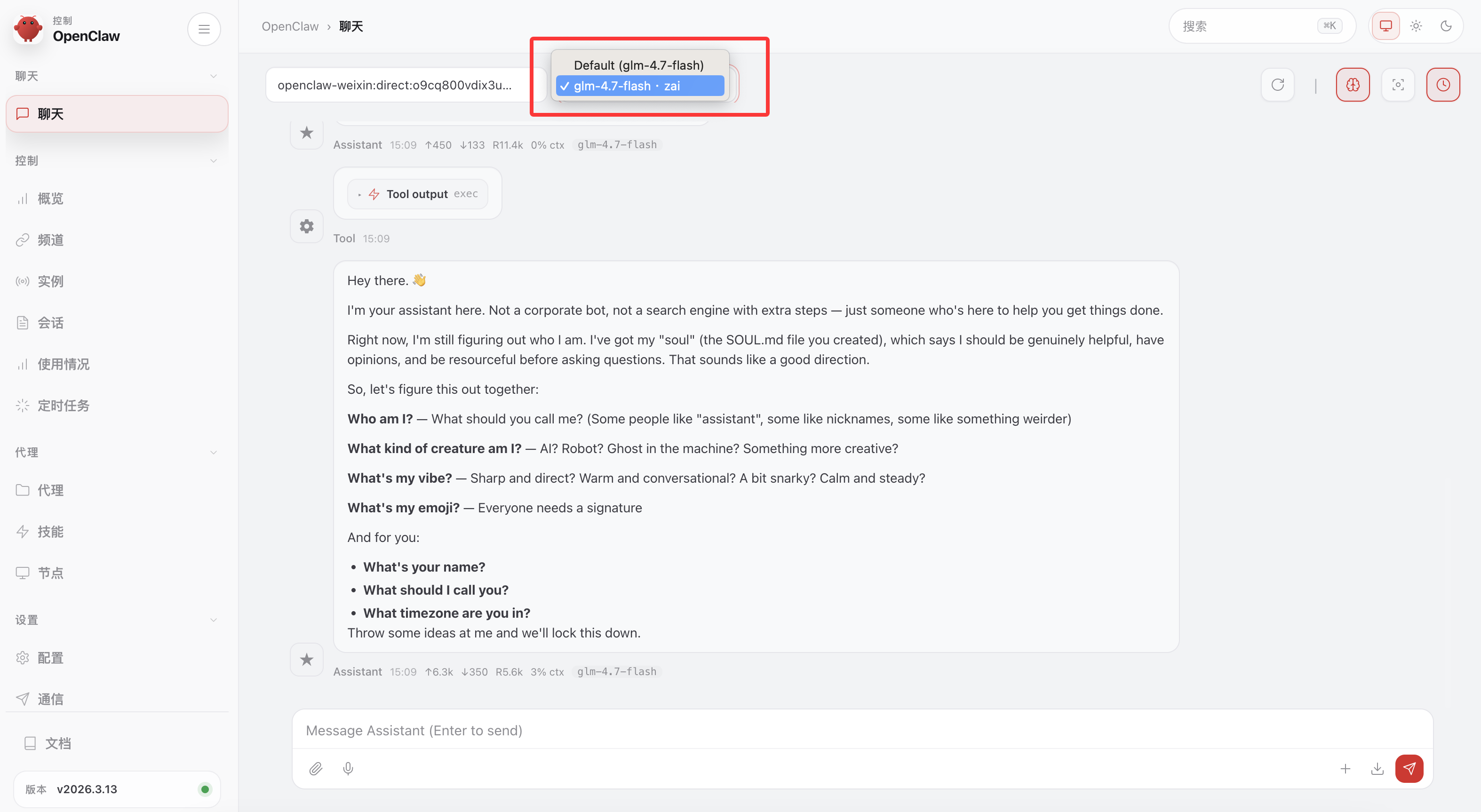
14.回到web提问

聊天框就有了模型glm-4.7-flash,然后就可以对话了。
openclaw-19

三、常用指令

1.验证一切是否正常工作

1
2
3
openclaw doctor # 检查配置问题
openclaw status # 查看网关状态
openclaw dashboard # 浏览器打开 Dashboard

2.网关指令

1
2
3
4
5
6
openclaw gateway status #网关状态
openclaw gateway #一次性启动网关
openclaw gateway stop #网关服务停
openclaw gateway start #网关服务开
openclaw gateway restart #网关服务重启
openclaw gateway install #安装网关服务

四、安装clawmetry

1.安装clawmetry

可以安装监控,监控openclaw在干啥:https://clawmetry.com/#get-started

安装好后一般就启动了,如果没启动可以使用命令:

1
clawmetry

打开地址:http://localhost:8900/

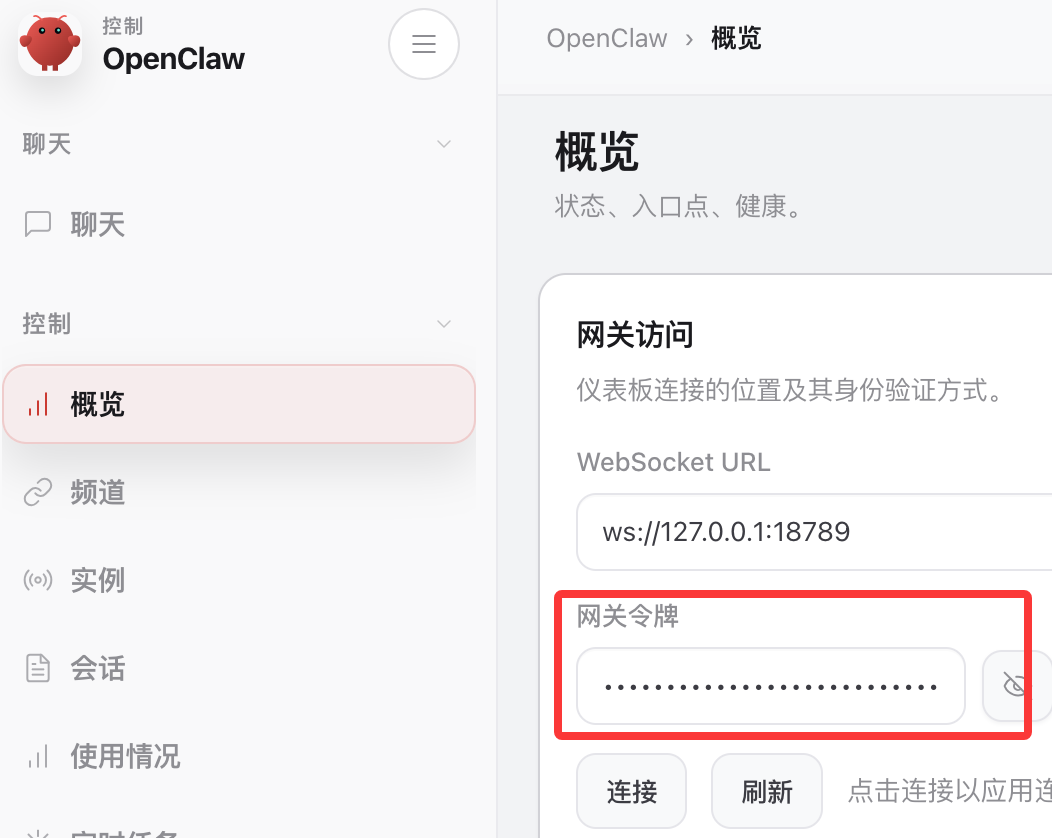
填入openclaw的token,token在:

openclaw-20

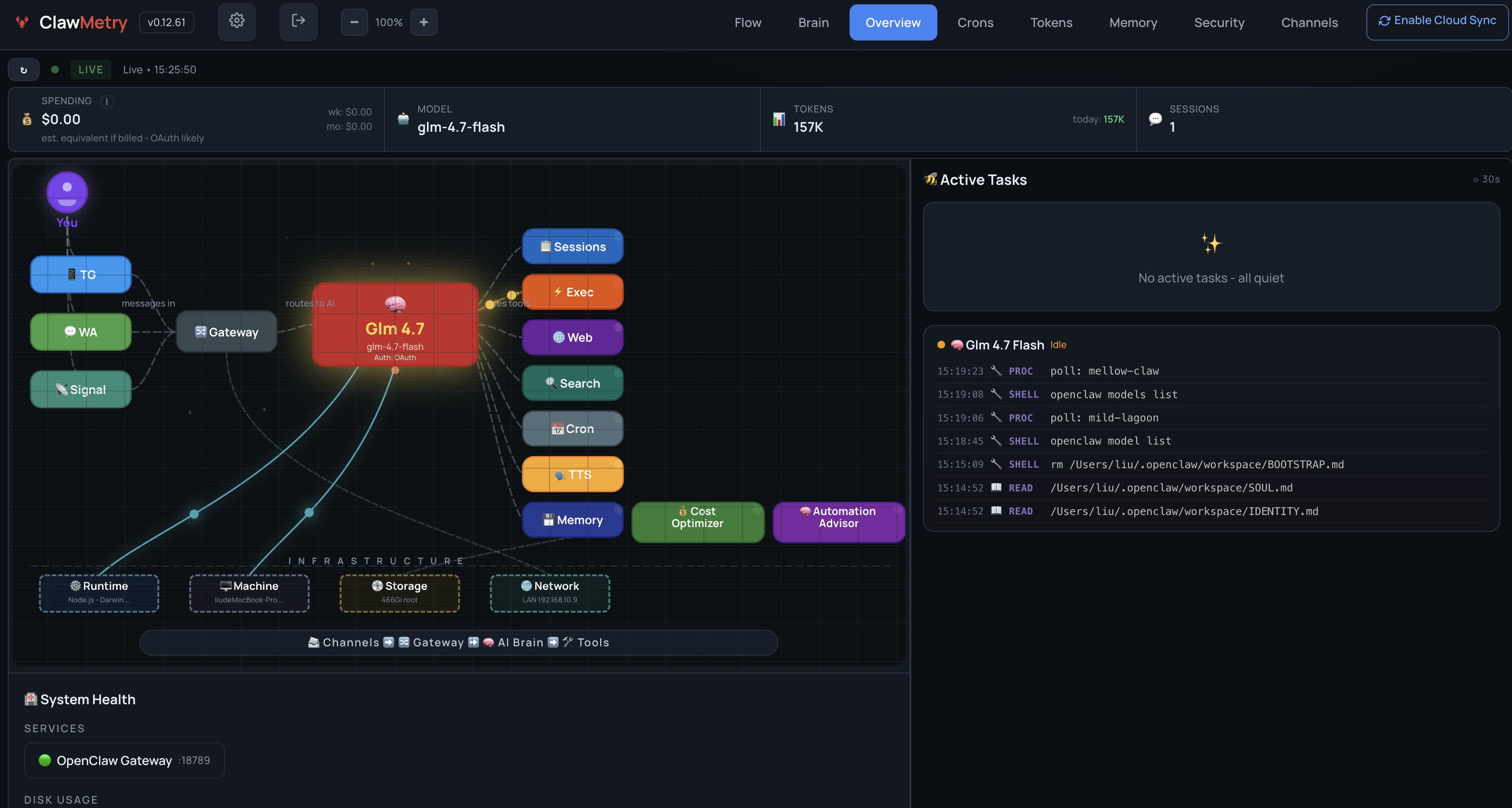
2.启动和访问

如果平时终端关闭了或电脑重启了,clawmetry进程就退出了,可以直接执行启动命令:

1
clawmetry

打开地址:http://localhost:8900/
openclaw-21

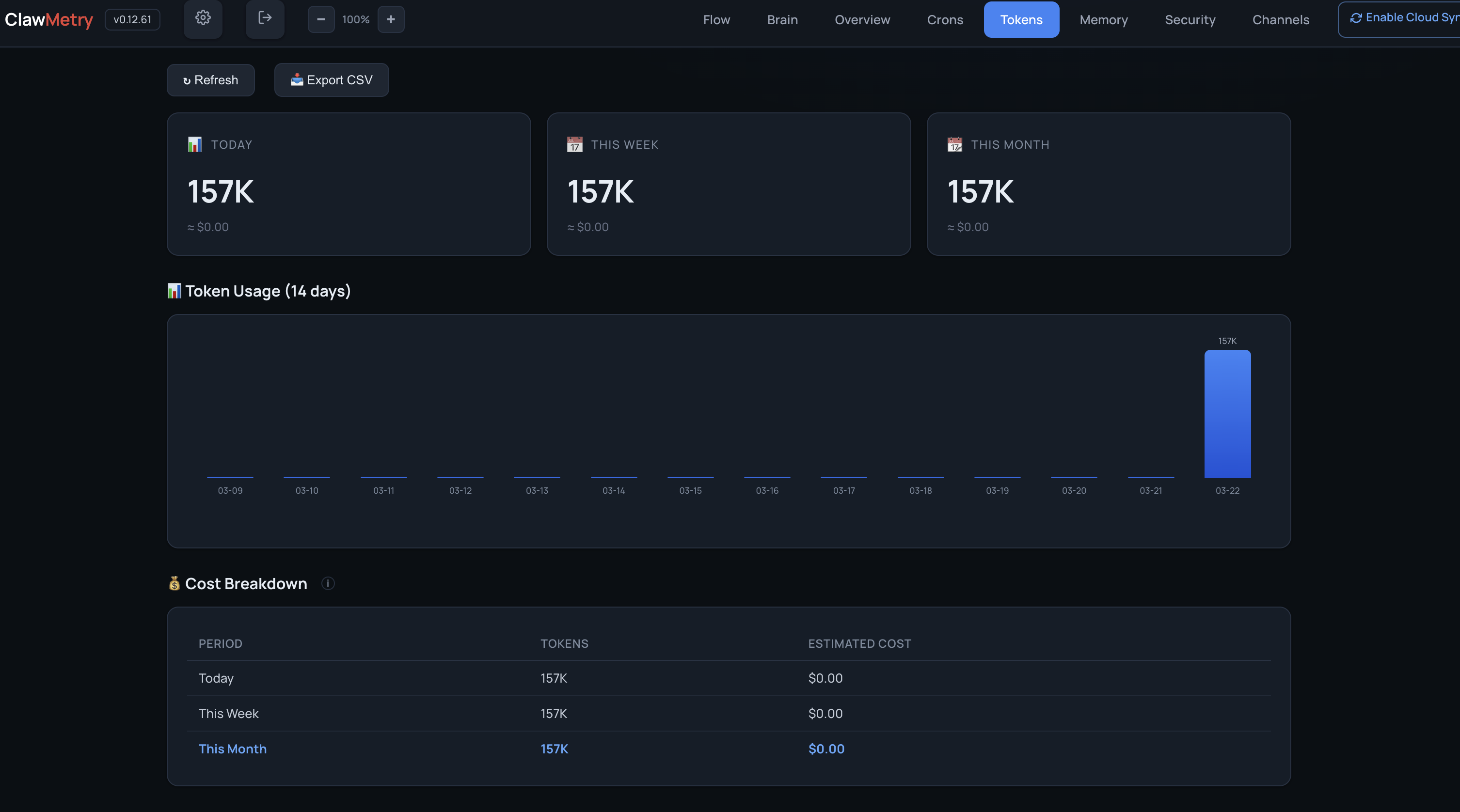
这样就可以随时监控openclaw在干啥了。还可以看token消耗,这里的消耗不是很准确,具体消耗还是平台后台看比较准确。

openclaw-22

3.自定义参数(可选)

如果你需要调整端口或绑定地址,可以使用以下参数:

1
2
3
4
clawmetry --port 9000           # 自定义端口(默认 8900)
clawmetry --host 127.0.0.1 # 仅绑定到本地
clawmetry --workspace ~/myclaw # 指定 OpenClaw 工作空间路径
clawmetry --name "Jarvis" # 在 Flow 可视化中显示你的名字

至此就完成安装了,可以愉快的养虾了🦞~

作者

wonderomg

发布于

2026-03-16

更新于

2026-06-29

许可协议

评论